Openstack là một cloud software được thiết kế để chạy trên các sản phẩm phần cứng như x86, ARM. Nó không có yêu cầu gì về đặc tính phần mềm hay phần cứng, nó tích hợp với các hệ thống kế thừa và các sản phẩm bên thứ ba. Nói cách khác, nó có thể thích nghi với hạ tầng kỹ thuật sẵn có mà không gây ngắt quãng.
Ban đầu, OpenStack được phát triển bởi NASA và Rackspace, và ra phiên bản đầu tiên vào năm 2010. Định hướng của họ từ khi mới bắt đầu là tạo ra một dự án nguồn mở mà mọi người có thể sử dụng hoặc đóng góp. OpenStack dưới chuẩn Apache License 2.0, và vì thế phiên bản đầu tiên đã phát triển rộng rãi trong cộng đồng được hỗ trợ bởi hơn 9000 cộng tác viên trên gần 90 quốc gia, và hơn 150 công ty bao gồm Redhat, Canonical, IBM, AT&T, Cisco, Intel, PayPal, Comcast và một nhiều cái tên khác. Đến nay, OpenStack đã cho ra đời 6 phiên bản và tháng 10 này một phiên bản mới được phát hành là Havana.
Cloud là gì?
Đầu tiên, hãy tìm hiểu xem, đám mây điện toán là gì. Các công nghệ đám mây được xây dựng trên các công nghệ đã có như ảo hóa và clustering để ảo hóa các tài nguyên phần cứng, phần mềm, lưu trữ, và network thành những đơn vị có tính linh hoạt mà có thể phân phối một cách nhanh chóng để đáp ứng theo nhu cầu. Do đó, hơn mô hình tĩnh cũ, các server phần cứng được dùng cho các nhiệm vụ khác nhau, các cấu hình mạng và storage tĩnh, tất cả những thiết bị cụ thể này được đưa vài một "bể tài nguyên chung". Nó hiệu quả cho việc sử dụng phần cứng, và nhanh chóng khi muốn tăng hay giảm tùy nhu cầu. Thậm chí, bạn có thể cấu hình tự phục vụ cho người dùng để họ có thể lấy bất cứ những gì họ cần và bất kì khi nào.
Private cloud được dùng trong các doanh nghiệp, chúng ta có các public cloud như Amazon's EC2 và Rackspace Cloud. Bạn có thể kết hợp private và public cloud để tăng hiệu quả sử dụng. Ví dụ, giữ những dữ liệu nhạy cảm trong private cloud và sử dụng public cloud cho việc chia sẻ, testing và lưu trữ dữ liệu không quan trọng.
Tất cả tài nguyên tính toán có thể chia sẻ được trên cloud, và có 3 dạng dịch vụ cơ bản:
·SaaS: softeware as a Service.
·PaaS: Platform as a Service
·IaaS: Infrastructure as a Service
OpenStack inside?
Tiếp đến, hãy đi sâu vào bên trong OpenStack
OpenStack không phải là một dự án đơn lẻ mà là một nhóm các dự án nguồn mở nhằm mục đích cung cấp các dịch vụ cloud hoàn chỉnh. OpenStack chứa nhiều thành phần:
OpenStack compute: là module quản lý và cung cấp máy ảo. Tên phát triển của nó Nova, nên khi bạn đọc về Nova thì hiểu đó là OpenStack compute. Nó hỗ trợ nhiều hypervisors gồm KVM, QEMU, LXC, XenServer... Compute là một công cụ mạnh mẽ mà có thể điều khiển toàn bộ các công việc: networking, CPU, storage, memory, tạo, điều khiển và xóa bỏ máy ảo, security, access control. Bạn có thể điều khiển tất cả bằng lệnh hoặc từ giao diện dashboard trên web.
OpenStack Glance, là OpenStack Image Service, quản lý các disk image ảo. Glance hỗ trợ các ảnh Raw, Hyper-V (VHD), VirtualBox (VDI), Qemu (qcow2) và VMWare (VMDK, OVF). Bạn có thể thực hiện: cập nhật thêm các virtual disk images, cấu hình các public và private image và điều khiển việc truy cập vào chúng, và tất nhiên là có thể tạo và xóa chúng.
OpenStack Object Storage, như là cái tên, nó dùng để quản lý lưu trữ. Nó là một hệ thống lưu trữ phân tán cho quản lý tất cả các dạng của lưu trữ như: archives, user data, virtual machine image … Có nhiều lớp redundancy và sự nhân bản được thực hiện tự động, do đó khi có node bị lỗi thì cũng không làm mất dữ liệu, và việc phục hồi được thực hiện tự động.
Identity Server quản lý xác thực cho user và projects.
OpenStack Netwok: là thành phần quản lý network cho các máy ảo. Cung cấp chức năng network as a service. Đây là hệ thống có các tính chất pluggable, scalable và API-driven.
OpenStack dashboard cung cấp cho người quản trị cũng như người dùng giao diện đồ họa để truy cập, cung cấp và tự động tài nguyên cloud. Việc thiết kế có thể mở rộng giúp dễ dàng thêm vào các sản phẩm cũng như dịch vụ ngoài như billing, monitoring và các công cụ giám sát khác.
Hãy trải nghiệm với OpenStack
Chúng ta hãy đừng chỉ nhìn vào OpenStack, chúng ta nên cài đặt và trải nghiệm với nó. Nó được thiết kế để quản lý các trung tâm dữ liệu lớn và sử dụng hàng perabyte dữ liệu, những bạn cũng có thể cài đặt nó trên PC. Nó được chứa trong hầu hết Linux distribution nên bạn có thể cài đặt nó chỉ như các phần mềm khác, từ bộ quản lý gói yêu thích.
Windows 8's bold grab for tablet relevance may snatch headlines, but it isn't the only operating system looking to extend its established supremacy over a whole new class of devices. As the PC market hemorrhages, more and more manufacturers are turning to Google's Android OS to power PCs that once carried Windows alone. From hybrids to all-in-ones to an Intel-promised flood of incredibly cheap "Droidbooks," Android cometh.
Fear not, all ye curious. The intriguing Android-x86 project has ported Google's open-source OS from the ARM processors common in smartphones and tablets over to the x86 chips found in everyday computers, so you can take Android for a spin on your PC before plunking cash down on one of the latest examples of computing convergence. And even if you have no plans to buy an Android PC, playing with Android on your current PC is just plain fun.
How does Google's mobile-focused operating system stack up on a full-size, not-so-mobile computer? You'll know firsthand after giving Android a test drive in a virtual machine.
Why a virtual machine?
Admittedly, virtual machines aren't as peppy as physical ones unless you have a bunch of system resources to toss around. And yes, you can install Android on your computer's hard drive—but I don't recommend even dual-booting this particular OS.
Hardware support for the operating system can be hit-and-miss, though the Android-x86 project mitigates that somewhat by providing several ISO files built around specific hardware, such as Asus and Lenovo ThinkPad laptops. Even so, running Android in a virtual machine is more consistently headache-free than dual-booting it. (Trust me—I tried it on three different machines.)
If you want to dual-boot Android regardless, the steps for doing so are basically the same as dual-booting Windows 8, at least up until the point of actually installing Android. From there, you'll want to pick up from the "Install Android on your PC" segment below.
Before we begin, note that you can click any image in this article to expand it to full size.
Get VirtualBox up and running
Once you've downloaded all the software, open VirtualBox and click the big blue Open button in the toolbar to begin. A Create Virtual Machine window will appear. Name your digital Android PC anything you like, but be sure to select Linux as the type of operating system, and Linux 2.6 as the version. Click Next.
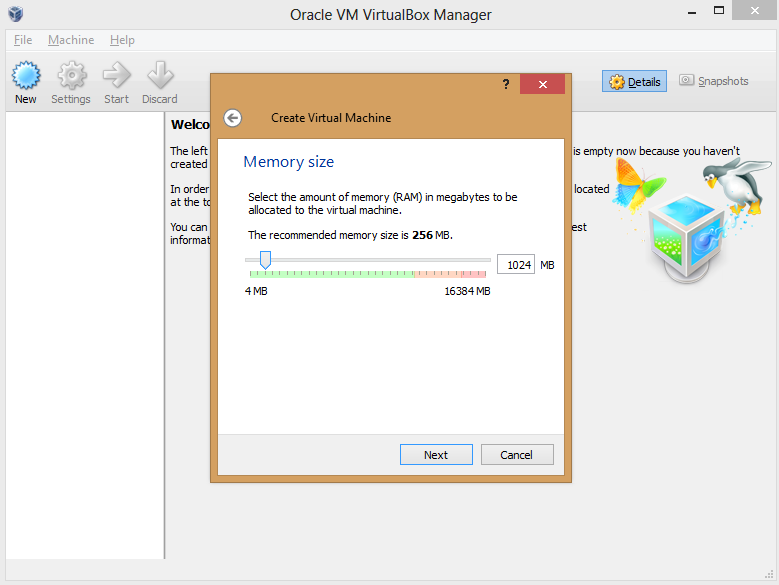
In the option screens that follow, you have to configure your VM's hardware allocation. Give it at least 512MB of RAM if you can, though Android-x86 can run on 256MB of RAM if you're using a resource-strapped PC. The more memory you can spare, the smoother the results will be, though you don't want to allocate so much to Android that your native experience suffers while the VM is active.
Create a virtual hard drive using the default options, adding more storage if you wish. (Remember: Android was made for phones, so it doesn't take much space, even with multiple apps installed.)
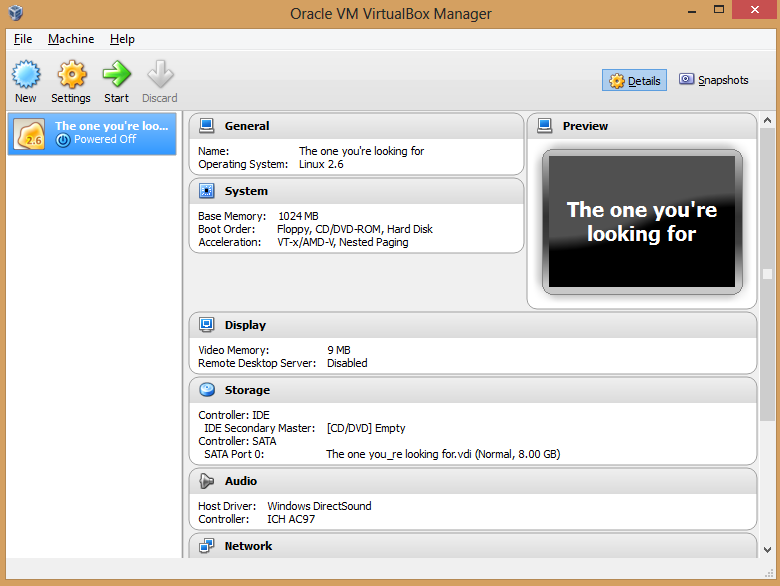
Boom! The VM appears in the VirtualBox manager.
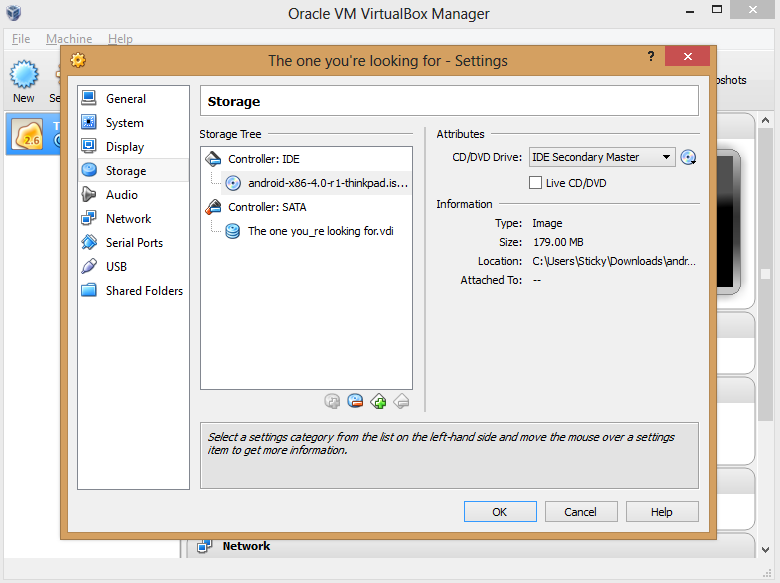
Next, you need to point the VM at your Android-x86 ISO. Click the Storage button in the VM manager and, in the window that appears, select the Empty option underneath 'Controller: IDE' to bring up various 'Attributes' options to the right. There, click the disc icon to the right of 'CD/DVD Drive' and select Choose a virtual CD/DVD disk file from the drop-down menu that appears. Simply browse your hard drive and select the Android-x86 ISO to load it in the virtual machine, and then click OK when you're done.
You're not quite finished yet, though. Click the Audio option, and in the window that appears, click the drop-down 'Audio controller' box and select ICH AC97. If you leave it on the default Soundblaster 16 setting, your Android VM's audio won't work properly.
Got it? Great! Now you're ready to install Android on your PC. The process is a bit trickier than your standard Windows installation.
Install Android on your PC
Click the name of your Android-x86 VM in VirtualBox's left pane, and then click the big green Start arrow. After clicking OK on any dialog boxes that pop up—be sure to read them!—you'll quickly notice that you can't use your mouse during installation. Use the arrow keys to scroll down to Installation, and then press Enter. Press Enter to select Create/Modify partitions on the next screen as well.
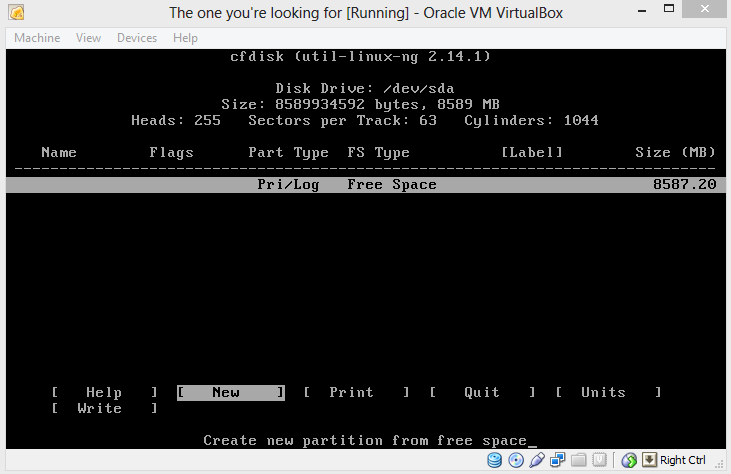
If you usually stick to graphical interfaces, the next menu may throw you for a loop, but it's nothing to be scared of. Just navigate to New and press Enter again. Select Primary as the partition type, and then press Enter once more to set the partition to the default size. You'll see the following screen.
Press Enter on the Bootable option, which should add 'Boot' under the 'Flags' listing, next to the computer name. With that done, select the Write option. A warning appears, threatening that writing to disk will wipe any data already on the disk. Who cares? This is a virtual machine, you silly installation software. Type yes, and then press Enter yet again.
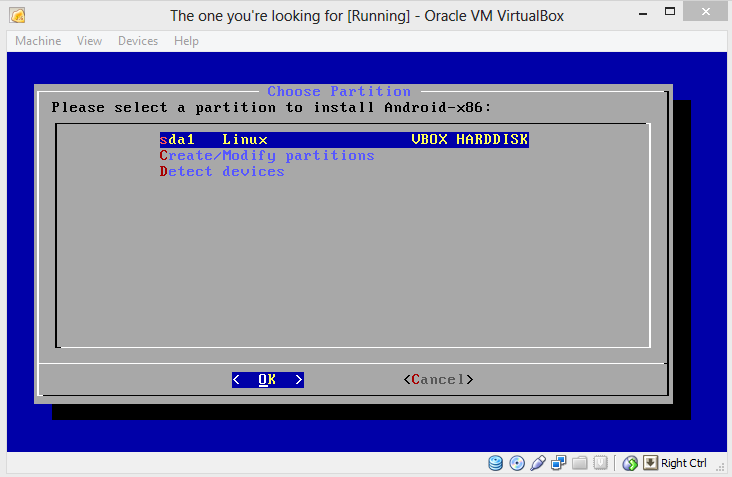
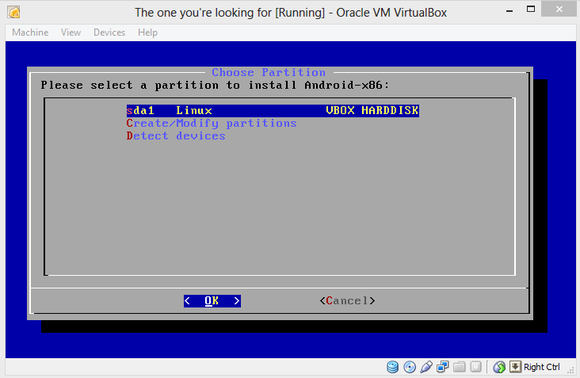
Highlight the Quit option and press Enter to return to the Choose Partition screen, which now lists the 'sda1' partition you created on the virtual hard drive. Press Enter again. You'll see a list of formatting options. Select ext3, press Enter, and select Yes when asked if you really want to format the disk.
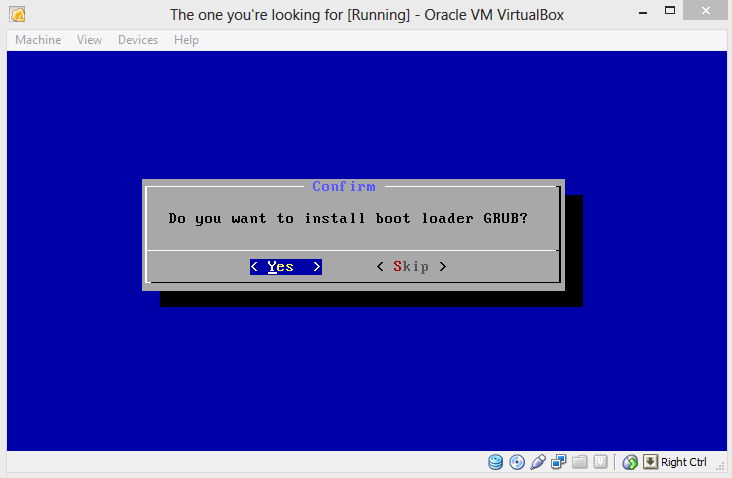
Do you want to install boot loader GRUB? Yup! You also want to install the /system directory as read/write when asked.
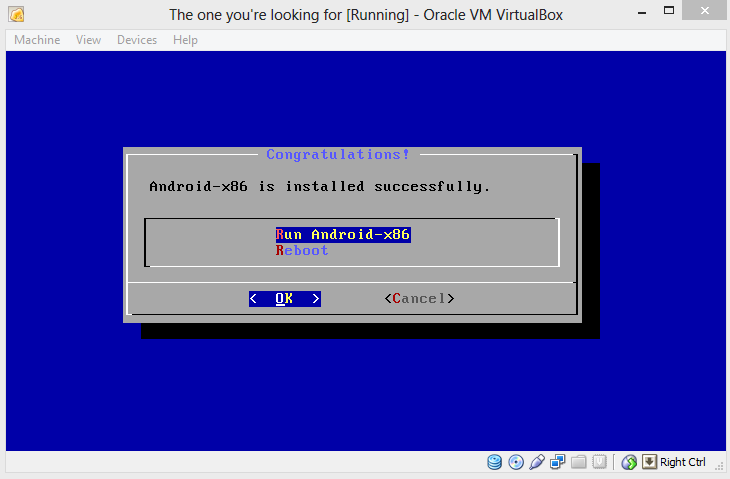
Aaaaand there's the screen we've been waiting for. Run Android-x86.
Assess Android
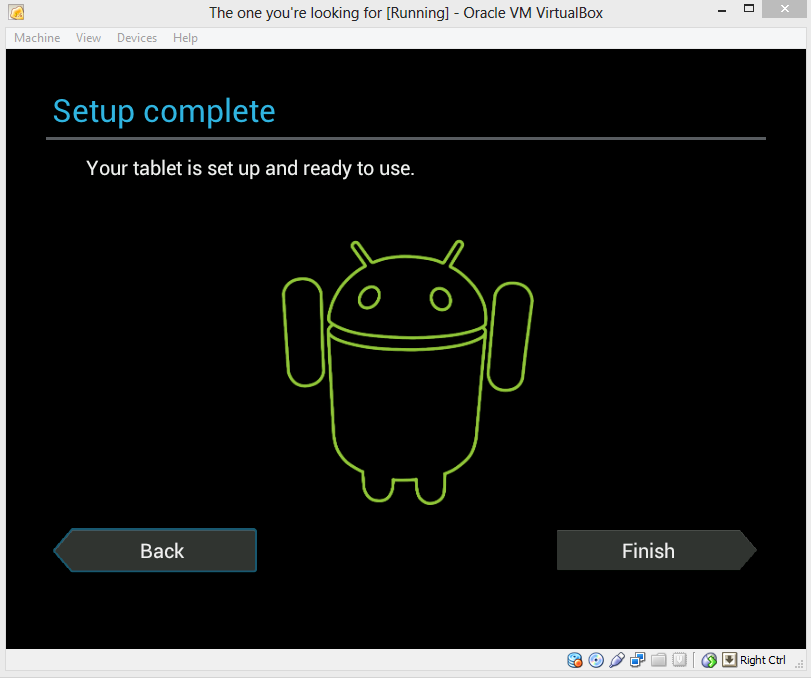
You're going to set up the operating system the way you would on a new Android phone or tablet. It's pretty straightforward, and you can even connect the Android-x86 VM to your Google account. But before you do that, you need to coax a mouse cursor on screen, because trying to navigate a touchscreen-optimized OS by keyboard is maddening.
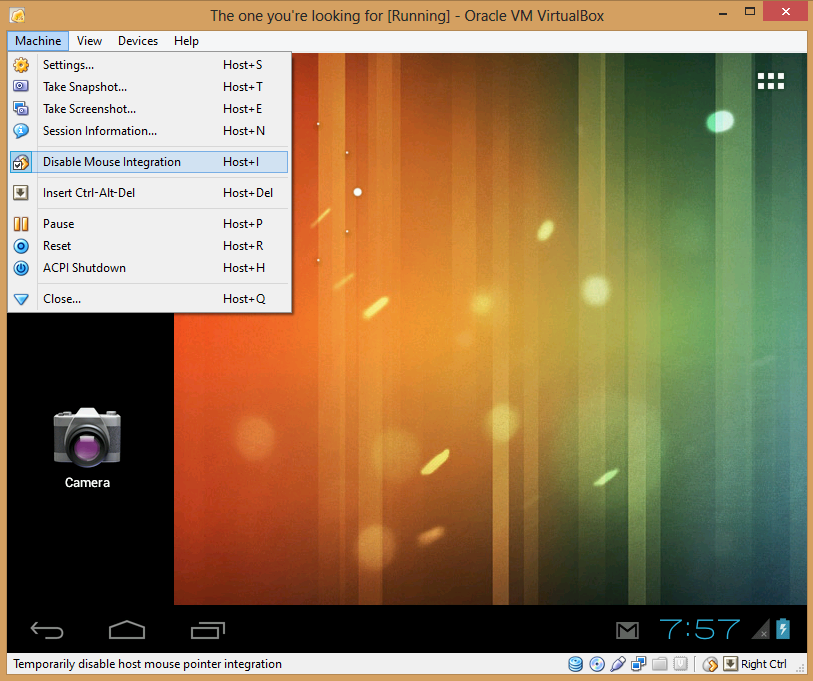
Click Machine in VirtualBox's toolbar, and select Disable Mouse Integration. Dialog boxes may appear; if so, click through them and continue. Disabling mouse integration allows you to manually control whether your mouse is controlling your primary OS or Android-x86. Pressing the right Ctrl button on your keyboard switches between the two operating systems. To swipe, click and hold the mouse button, and then move the mouse.
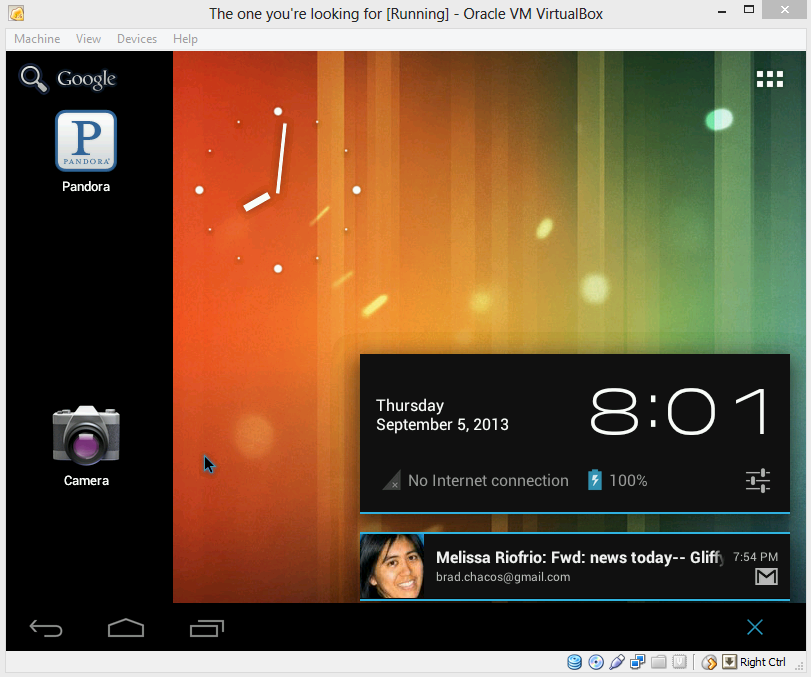
With that taken care of, you're free to explore Android on your PC!
Don't expect a flawless experience with Android-x86. You can't sync your Google account's apps to the VM, despite what the setup process implies—at least not yet. (Fortunately, Android-x86 ships with Google Play installed, and most apps I've tried work just fine, though you might notice the occasional wonkiness.) Nor does the virtualized OS work with any of the touchscreen displays I've tried. And yes, performance can be kind of poky, no matter how much RAM you toss at Android-x86.
That being said, giving Android a whirl on your PC will nevertheless give you a good feel for what's possible on an Android-powered laptop. The result isn't perfect, but if you give it a shot, I think you'll wind up pleasantly surprised. Android wasn't made for big screens, but all those smartphone-optimized apps hold up okay, and a ton of them are completely free, completely awesome, and can't be found on proper PCs.
And hey—for what it's worth, the Android Gmail interface blows away the ugly webmail UI.
It is essential to have a Web presence for your business, even if it's no more than a simple information page. Your customers will look for a website to learn about your business before they look for a phone book or newspaper ad. You can publish and maintain your website yourself, and with these five open source site builders, it's inexpensive and easy.
First Things First
A website and an email address are two essential components of your branding, so you should have your own registered domain name. Let's say your business is Golden Touch Tattoos. You want your customers visiting goldentouchtattoos.com and emailing you at artist@goldentouchtattoos.com.
Using a free service like Gmail, Hotmail or Yahoo looks amateurish, and why should you promote their businesses? The email address artist@gmail.com doesn't support a consistent identity or help people remember you. It costs only about $16 per year to keep a registered domain name, and it's easy to find registrars.
Next you need to find a Web hosting service. These abound, and don't spend more than $50/month for a service with lots of features and lots of choices for site builders. The Internet is powered by free-of-cost open source, so it doesn't cost much for a Web host to offer all the bells and whistles. The hosting business is cutthroat and full of bad hosts, so visit Web Hosting Talk to find out which hosts are good and which hosts you should avoid.
Please resist the temptation to load your shiny new site with special effects, animations, weird fonts and garish color schemes. Your customers want information, and they want to find it quickly.
Remember that posting contact information, like email and phone numbers, is just the first part -- who will answer the phone, who will reply to emails? Will they reply quickly and knowledgeably? If you enable forums and commenting, who will moderate them? Not weeding out spammers, trolls and mean people, and not replying quickly and courteously to site visitors, are all good ways to chase away customers.
Here, for your consideration, are five open source website builders -- in order from small-and-simple to large-and-feature-crammed. They all come with multiple themes for customizing their appearance, spam filters, support multiple languages, require no coding knowledge, and should all be available at any good Web host.
Textpattern
Textpattern is a nice choice for a text-heavy site with, for example, lots of tutorials, detailed product information, announcements, press releases or a CEO blog full of deep thoughts. You can easily post and organize images as well.
Textpattern uses a Web-based administration console and includes slick tools like a plain text-to-Web-page converter, human-readable clean URLs (which are also search engine optimization-friendly, very flexible organization and categorization, and nice control of reader comments. Writing and editing new content is fast and intuitive, and its layout controls don't drive you crazy -- you can actually make your pages and articles look the way you want without a fight.
Dotclear
DotClear, like Textpattern, is friendly to writers and editors with easy formatting, editing and layout tools that don't get in your way. It offers modules for importing your content from other blogs and nice multi-media management.
Better yet, it includes features not present in most other site builders: accessibility for Braille displays and screen readers. Don't forget your vision-impaired or keyboard/mouse-impaired customers, because their money spends exactly the same as everyone else's, and even in this modern 21st century they're still overlooked by most businesses.
Wordpress.com
Wordpress is two different things: Wordpress is free open source blogging software that you download and install on your own Web server, and Wordpress.com is a site that hosts Wordpress blogs, with both free and paid services. It's the most popular blogging site, and for good reason -- Wordpress is fast to learn.
You can literally create and publish a new site in a few minutes. If you're brand-new to building your own website, I recommend signing up for a free Wordpress account for practice. This includes 3GB of storage, a statistics system so you can see where your traffic is coming from, spam filter and 100+ free themes.
A free Wordpress account isn't adequate for a business site, because you can't use your own domain name. Instead you get a subdomain like mysite.wordpress.com. This is fine for a personal site or for practice, but for a business you should spend a few bucks to use your own domain name.
Wordpress.com charges $17 to $24 per year for a custom domain name. If you are verbose and publish much content, or you want to post lots of photos or videos, extra storage costs $19.97 to $289.97 per year, depending on how much you need. There are no bandwidth charges.
Video hosting costs $59.97 per year, and it's pretty slick. It supports high- and low-definition videos, and when you upload your video Wordpress.com automatically converts it to the correct format. Wordpress supports forums, image galleries, videos, blogs, newsfeeds and pretty much everything you might ever need.
Plone
Plone doesn't get much buzz, which is surprising for such an excellent, elegant site builder. It is known for its polish, speed and user-friendliness. It has superior editing tools, excellent search and indexing and painless upgrades.
It renders pages correctly in all Web browsers, even the ancient Internet Explore 6, which still holds about 10 percent market share. Wordpress and Drupal use database backends, which has some advantages but at the cost of greater complexity. Plone stores binary files and file data in the filesystem, and is very efficient in terms of server speed and storage.
Plone's one downside is complexity, which is hard to avoid with a fully-featured content management system (CMS), so the initial setup is more work than Wordpress. After the initial setup, it's fairly painless to administer with a nicely-organized administration interface.
Drupal
Drupal is the most flexible site builder and CMS, which also makes it the most future-proof. You can start small, learn your way around, add features and content at your own pace, and Drupal will grow with you. Its administration interface is a sleek, dynamic overlay with controls appropriate to the page you are on, so everything you need is always in front of you.
Drupal has a huge developer and user community cranking out cool themes and extensions day after day, so if there is some specific feature you want it's probably out there somewhere. It's a bit overkill for a simple site, but if you want the option to grow over time and add features, then Drupal's a great choice.
Carla Schroder is the author of The Book of Audacity, Linux Cookbook, Linux Networking Cookbook, and hundreds of Linux how-to articles. She's the former managing editor of Linux Planet and Linux Today
Module video là một module xuất hiện khá nhiều trên các website, nhất là website của Công ty. Module này có chức năng trình chiếu các video liên quan tới hoạt động của Công ty hoặc những video cần chuyển tải tới người sử dụng với một mục đích nào đó.
Bài viết này với mục đích đáp ứng nhu cầu học tập của những thành viên mới của diễn đàn, mình sẽ trình bày cách xây dựng một module nhằm cung cấp cho người đọc những khái niệm và những hiểu biết cơ bản khi muốn code một module bất kỳ.
Để hiểu rõ module này có các chức năng như thế nào, xin mời các bạn ghé qua trang chủ của Việt Nam Net và nhìn tới phần module, sau đó thử một vài thao tác để hình dung công việc chúng ta sắp làm.
Khi Click vào video bên dưới, bên trên sẽ chạy video được click.
Yêu cầu thêm: Có nhiều video được sắp xếp từng nhóm. Mỗi module video ở các trang khác nhau sẽ hiển thị video thuộc các nhóm khác nhau (Không giống nhau cho toàn bộ Portal)
Phân tích yêu cầu:
1. Xác định video Player cần sử dụng
Tất nhiên là ở đây chúng ta chỉ bàn tới DotNetNuke, mình sẽ không bàn sâu tới cách sử dụng video player như thế nào và tại sao phair làm thế. Mình chỉ đề cập tới xây dựng module này ra sao và cách cài đặt nó như thế nào.
Qua quan sát và hiểu biết (thực tế VietNamNet cũng sử dụng Video Player này) chúng ta sẽ chọn JWPLAYER để làm control dùng để chạy các video. JWPlayer hoàn toàn có thể đáp ứng được các yêu cầu của chúng ta.
2. Xác định cấu trúc lưu trữ Bài này ta chọn MSSQL Làm CSDL để lưu trữ dữ liệu - Ta cần có 1 bảng để lưu danh sách các video, bảng này mang tên là dnnvn_video.
- Một bảng nhóm các video (bởi yêu cầu của bài toán là module video có thể xuất hiện ở nhiều chỗ trên website và chạy các video theo nhóm). Trong trường hợp website không có nhu cầu thì coi như website đó chỉ dùng 1 nhóm và các module video này sẽ chơi các video giống nhau.
Sau khi ngồi thiền một lúc thì mình tạm đề xuất danh sách các trường dữ liệu của 2 bảng trên như sau:
Giới thiệu qua về CSDL:
Bảng dnnvn_VideoCategory: Chứa danh sách các nhóm video, sau này mỗi module sẽ chơi theo từng nhóm của bảng này.
Trong bảng video, một số trường tôi thiết kế mà không giải thích (sẽ giải thích sau) dùng để dự phòng phục vụ cho việc mở rộng module. Trong khuôn khổ của bài hướng dẫn tôi xin phép bỏ qua phần này (Bởi lan man, dễ làm người đọc bị rối, và cũng muốn người đọc tự phát triển phần tiếp theo)
Bây giờ là lúc chúng ta bắt tay vào code module này.
Xây dựng module.
Có 2 cách xây dựng module là viết theo Web Application Project (WAP) và Website (Viết dưới dạng nhóm file tích hợp thẳng vào trong bộ DotNetNuke đang chạy). Nếu bạn chưa rõ kiến trúc của module xin xem lại bài viết số 3 tại địa chỉ: http://www.dnnvn.net/for...le-trong-DotNetNuke.aspx
Mỗi cách viết đều có ưu/nhược điểm của nó(tương tự như phát triển website vậy). Cách dùng WAP cách tổ chức gọn gàng hơn, dễ dàng đóng gói module (nhất là trong trường hợp bạn viết module nhưng không muốn chia sẻ source code) tuy nhiên cách này mất thời gian (mỗi lần build module, dotnetnuke lại phải biên dịch lại và chạy rất chậm)
Cách viết dưới dạng website: Cách này có ưu điểm là khi code chạy nhanh, lỗi file nào thì báo chỗ đó, để cập nhật chỉnh sửa chỉ cần F5 để refresh trình duyệt là OK. Không phải build lại cả Project. Tuy nhiên cách này khi đóng gói sẽ khó khăn hơn. Nếu bạn không muốn chia sẻ source thì cách này không được tốt cho lắm bởi khi đóng gói nó sẽ phải đi kèm cả source code.
Bây giờ xin mời bạn cùng bắt đầu bắt tay vào xây dựng module. (bạn chú ý kiểm tra lại xem máy bạn đã tuân thủ điều kiện như bài viết số 3 chưa? nếu thiếu một trong các phần như Chưa cài file .vsi, chưa có dotnetnuke, chưa có template cho dotnetnuke thì bạn cần phải làm ngay bởi trong phần tiếp theo tôi sẽ hướng dẫn sử dụng các công cụ này.)
(Do phần tiếp theo chủ yếu là các thao tác thực hành nên tôi xin phép trình bày bằng video để các bạn có thể dễ dàng hiểu được các thao tác)
Video 1: Tạo module dạng WAP
Trong video này có đoạn code mẫu để cho Sau khi build thành công, VisualStudio tự động copy các file sang thư mục ta chỉ định (Để ta không phải làm bằng tay) đó chính là
(Bạn có thể tải mã nguồn của module tại file đính kèm bài viết)
Sử dụng CodeSmith để sinh code cho module
(Nếu bạn chưa rõ CodeSmith là gì thì tôi xin giới thiệu vắn tắt như sau: CodeSmith là một công cụ hỗ trợ ta sinh ra các đoạn mã thông qua các template của nó. Để download xin mời bạn truy cập vào địa chỉ: http://dnnvn.net/forum/d...p-trinh-DotNetNuke.aspx , Để hiểu chi tiết hơn, bạn có thể truy cập vào trang: http://www.codesmithtools.com/ )
Sau đây là phần hướng dẫn sử dụng codesmith khi code module. Có những thứ có sẵn sau khi cài codeSmith vào máy, những template bạn có thể down ở cùng link download bên trên)
Hiện tại module này còn phần đóng gói CSDL và Việt hóa nữa (lười quá chưa làm :">)
Để các bạn quan tâm không nóng ruột vì phải chờ đợi thêm, mình quyết định chia sẻ module này (phần đóng gói mình sẽ hoàn thành sớm cùng với Video hướng dẫn, để bác nào chưa rõ phần đó sẽ rõ)
DotNetNuke 6.x đã có một bước thay đổi quan trọng đối với Cộng đồng, hầu hết phần core của DNN 6.x đã được viết lại bằng Ngôn ngữ lập trình C#, đây cũng là ngôn ngữ được rất nhiều lập trình viên .NET ưa chuộng. Nếu trước đây bạn đã từng lo ngại vì DotNetNuke sử dụng VB.NET thì nay đó không còn là vấn đề nữa, với nhiều thay đổi từ bộ core bên trong đến việc bổ sung các Skin (giao diện mới) DotNetNuke ngày càng được cộng đồng quan tâm hơn.
Rất vui vì bạn đã quan tâm tới bài viết này. Hi vọng bạn cũng sẽ là một tín đồ của DotNetNuke và kiếm được một chút gì đó khi tham gia Cộng đồng DotNetNuke Việt Nam
Đây cũng là bài đầu tiên trong chuỗi những bài hướng dẫn sử dụng và phát triển DotNetNuke
Đọc xong bài này bạn sẽ:
- Hiểu được những vấn đề cơ bản trong quá trình cài đặt - Có thể cài đặt thành thạo được DotNetNuke từ bộ mã nguồn - Có được một bản DNN chạy offline là cơ sở để bạn có thể tùy chỉnh DotNetNuke theo ý của bạn.
Bài 1: Hướng dẫn cài đặt DotNetNuke từ bộ mã nguồn của DotNetNuke
Trước hết xin mời bạn có thể xem demo bản cài đặt tại địa chỉ: http://demo.dnnvn.net/ . Hi vọng bạn trở lại bài viết ngay để tiếp tục theo dõi bởi sau bài viết này, tự bạn cũng có thể cài đặt được một bản như vậy. Còn bây giờ, DNNVN xin được bắt đầu bài viết.
Yêu cầu hệ thống: - Đã cài đặt IIS và đảm bảo IIS đang hoạt động bình thường (Xem hướng dẫn cài đặt IIS trên Windows 7) - Đã cài đặt Visual studio 2008/2010 - Đã cài đặt MS SQL 2005/2008 (có thể dùng bản express hoặc bản cao hơn, tuy nhiên đã mất công dùng thì dùng luôn bản mới để ngâm cứu cho sướng) - Download bộ cài của DotNetNuke tại địa chỉ http://dotnetnuke.codeplex.com/ và giải nén vào một thư mục trên ổ đĩa. ở đây tôi chọn là D:\Develop\2011\DNNVN.NET\DotNetNuke_Community_06.00.01_Source
Bước 1:Tạo CSDL cho bản cần cài đặt. Do dùng trên local nên tôi tạm dùng tài khoản SA vì hệ thống local của máy cá nhân không cần yêu cầu bảo mật cao vả lại tạo nhiều tài khoản nhiều khi khó quản. Tuy nhiên bạn cũng chú ý, khi cài trên online - những ứng dụng yêu cầu bảo mật hoặc hệ thống có nguy cơ rủi ro từ việc sử dụng chung tài khoản truy cập CDSL tốt nhất mỗi trang web nên có một user truy cập riêng - cái này phụ thuộc vào chính sách bảo mật và mô hình tổ chức của bạn. Để tạo một CSDL cho website chuẩn bị cài đặt, bạn đăng nhập vào MS SQL và New database ...
Sau đó bạn nhập tên cho CSDL cần tạo, ở đây tôi đặt là dnnvn_demo, bạn nhớ lấy tên csdl này để lát nữa sẽ cung cấp cho DotNetNuke khi cài đặt. Chú ý: Nếu cần thay đổi đường dẫn của các file CSDL (thường là hay làm vậy bởi mặc định những gì nằm ở ổ C: khi hệ thống bị tèo thì bạn có thể mất đi bất kỳ lúc nào. Nhất là khi bị quên ko sao lưu khi cài lại máy). Phòng trường hợp này, tôi chọn nơi lưu trữ cũng là một thư mục chứa bộ source của DotNetNuke sau này.
Sau khi tạo CSDL xong, bước tiếp theo là dùng Visual studio để mở DotNetNuke lên, mặc định bộ cài chưa có đủ file .dll do đó ta phải dùng Visual Studio để build. Quá trình build thành công, bạn sẽ có một bản sẵn sàng cho việc cài đặt
Bước 2: Build DotNetNuke bằng Visual Studio từ bộ Source đã download
Bước này cần chú ý: mặc định DotNetNuke sẽ tạo ra một virtual directory trên máy bạn với tên là: DotNetNuke_Community và địa chỉ truy cập là http://localhost/DotNetNuke_Community , nếu bạn không thích cái tên do nó tự tạo, bạn có thể mở file Solution bằng một text editor - không phải visual studio, và sửa chúng. Ở đây tôi dùng Notepad++ và chọn tên mới là dnnvn, địa chỉ truy cập dự kiến sẽ là: http://localhost/dnnvn. Bạn cũng chú ý, để tránh những thông tin thiếu sót tốt nhất là bạn nên dùng replace all và next từng giá trị một để có thể quan sát. Việc quan sát này cũng sẽ cho bạn những hiểu biết nhất định về Solution của DotNetNuke. Code sau khi sửa:
Trước khi dùng VisualStudio mở và build Solution, bạn nhớ đổi tên file Release.config thành Web.Config (hoặc Development.config thành web.config) việc quyết định sử dụng file nào tùy thuộc vào bạn sử dụng DNN này ra sao. Thường thì cứ đổi file release.config thành Web.config cho chắc ăn. Nếu bạn quên không đổi, VisualStudio sẽ tự động tạo và đó sẽ là lý do khi chạy bị lỗi.
Tiếp theo bạn mở Visual Studio ra và Build Solution này. Ở đây tôi dùng VS 2010, .NET 4.0 và Windows 7. Việc sử dụng hệ điều hành (dẫn đến IIS có thể khác nhau) phiên bản Visual Studio và .NET Framework khác nhau cũng có khác nhau đôi chút. Nên nếu giao diện cửa sổ Windows của bạn có khác thì cũng không phải lo lắng.
Như bên trên đã đề cập, do bộ này là bộ source nên vẫn các file dll đi kèm không được vào thư mục bin của website như bộ Install, do đó ta cần phải build trước khi chạy. Nếu bạn không buil mà chạy ngay sẽ bị dính lỗi như sau:
Việc build cũng chỉ mất vài phút thiết nghĩ đối với những người mới làm quen thì nên làm đầy đủ các bước này để có thể quan sát và nắm rõ hơn DotNetNuke
Quá trình build thành công, bạn sẽ nhận được kết quả như cửa sổ sau. Chú ý: "Nếu build mà không thành công, xin kiểm tra lỗi và xem lại máy của bạn" vì có một số trường hợp tôi từng hỗ trợ, nguyên nhân là do IIS của máy đó dẫn tới quá trình build bị thất bại hoặc gặp các lỗi khi bắt đầu chạy. Việc này tùy từng trường hợp mà có cách xử lý cụ thể, nếu bạn nào gặp vào trường hợp này xin post lên diễn đàn anh em trong diễn đàn sẽ hỗ trợ.
Sau khi build thành công, đây là lúc mà bạn đã sẵn sàng để chạy bằng cách chọn View in Browser từ cửa sổ của Visual Studio hoặc bạn có thể mở trình duyệt và gõ thẳng vào http://localhost/dnnvn. Hình minh họa:
Một cửa sổ mới hiện ra và chúng ta bắt đầu quá trình thiết lập thông tin cài đặt, ở đây ta chọn chế độ cài đặt là Custom - tùy chọn từng bước trong quá trình cài đặt ngoài ra còn 2 chế độ nữa đó là: Typical: cài đặt với những module, thành phần điển hình tích hợp sẵn trong DotNetNuke Auto: hệ thống sẽ tự động cài đặt với các thông tin mặc định của dotnetnuke ví dụ như tên, mật khẩu của host, admin, các module điển hình có sẵn trong dotnetnuke. Để thực hiện được bước này thì bạn phải thay đổi chuỗi kết nối CSDL trước khi bắt đầu cài đặt trong file web.config.
Chọn Next để chuyển sang bước tiếp theo. Một màn hình mới hiện ra với các thông tin kiểm tra quyền của user IIS (Đối với WinXP thì user này là aspnet_user, còn đối với windows 7, windows server là NETWORK SERVICES, nếu trên host có sử dụng Plesk thì user thường là Plesk IIS User tùy theo hệ thống mà chọn user tương ứng.
Các quyền cần phải thiết lập: Tạo/xóa thư mục/tệp tin (nếu thiết lập quyền cho user thì tương ứng sẽ là quyền modify)
Tiếp theo là nhập thông tin kết nối CSDL cho website đang cài đặt. Có một tham số quan trọng ở đây chính là Object Qualifier đây chính là tiền tố cho tên các đối tượng do DotNetNuke tạo trong quá trình cài đặt. Ví dụ nếu bạn đặt là dnnvn thì khi tên các table do DotNetNuke sinh ra sẽ tương ứng là dnnvn_Users,dnnvn_Portals ...
Ở đây tôi bỏ trống - coi như không có tiền tố cho các đối tượng được sinh ra
Bước tiếp theo DotNetNuke sẽ tự động cài đặt. Bạn chỉ việc click Next cho mỗi bước được yêu cầu.
Khai báo thông tin tài khoản host (tài khoản quản trị cấp cao nhất hệ thống DotNetNuke) và khai báo thông tin thiết lập Email. Các thông tin hiển thị như hình minh họa.
Chọn các module cài đặt thêm vào DotNetNuke ngoài các module không thể thiếu. Sau này vẫn có thể cài lại các module này.
Chọn Skin để cài đặt, ở đây mặc định chỉ có 1 Skin do đó ta cứ Next cho nhanh (vì cũng ko còn chỗ nào hay hơn để Click nữa >:) ). Sau này muốn cài vẫn thoải mái vào cài.
Chọn ngôn ngữ - Tuy nhiên mặc định thì ta lại next. Sau này ta vẫn có thể cài thêm ngôn ngữ này.
Chọn chế độ xác thực đăng nhập, cái Active Directory này dùng khi kết hợp với cả hệ thống ActiveDirectory của Windows Server. Trên localhost chúng ta không chọn chế độ này.
Cài đặt thêm các Provider cho DotNetNuke. Mặc định chọn Next, các thành phần Provider được chọn sẽ tích hợp vào trong hệ thống như mở rộng thêm các tính năng cho Website,
Khai báo thông tin tài khoản quản trị website ở bước này bạn chú ý: nên dùng email khác với Tài khoản host để tránh xung đột sau này khi bạn muốn bắt buộc mỗi người dùng phải sử dụng một email phân biệt bằng cách cấu hình trong file web.config sau khi cài dặt
Code cấu hình yêu cầu mỗi người dùng phải sử dụng một email khác nhau. Thiết lập thuộc tính requiresUniqueEmail=true
<add name="AspNetSqlMembershipProvider"type="System.Web.Security.SqlMembershipProvider"connectionStringName="SiteSqlServer"enablePasswordRetrieval="true"enablePasswordReset="true"requiresQuestionAndAnswer="false"minRequiredPasswordLength="7"minRequiredNonalphanumericCharacters="0"requiresUniqueEmail="true"passwordFormat="Encrypted"applicationName="DotNetNuke"description="Stores and retrieves membership data from the local Microsoft SQL Server database"/>
Xin nói thêm có 2 thuộc tính trong chuỗi này bạn cũng nên quan tâm đó là
minRequiredPasswordLength="7": Độ dài tối thiểu của mật khẩu, nếu muốn ngắn hơn thì bạn có thể điều chỉnh giảm con số này. minRequiredNonalphanumericCharacters="0": Số ký tự đặc biệt yêu cầu, nếu muốn mật khẩu có độ khó cao hơn thì bạn thiết lập giá trị cho tham số này. Sau bước trên. bạn sẽ có một màn hình như sau.
Trên đây là bài hướng dẫn cài đặt DotNetNuke từ bộ mã nguồn của DotNetNuke 6.0.1 - tất nhiên bài viết này vẫn có giá trị đối với các phiên bản 5.x và những bản về sau. (Tất nhiên khi DotNetNuke thay đổi các bước cài đặt, chúng ta sẽ trao đổi về vấn đề đó sau).
Các vấn đề đã đề cập trong bài viết:
1. Cách cài đặt DotNetNuke từ bộ mã nguồn (source code)
2. Các bước thiết lập thông tin trong quá trình cài đặt DotNetNuke
3. Cách thiết lập email,mật khẩu trong cấu hình web.config của DotNetNuke
Vài chú ý:
1. Nếu bạn dùng gmail, bạn cần post dưới dạng: smtp.gmail.com:587
Phần username và pass bạn cung cấp thông tin về user name và pass của gmail.
2. Chạy trang Default.aspx để cài đặt và nó hiện lỗi này:
Bạn kiểm tra xem đã thiết lập quyền write trên thư mục website cho người dùng IIS_IUSRS (Win7 và win server) chưa nhé













 DNNVN_Video_01.00.00_Install.zip

 DNNVN_Video_01.00.00_Install.zip


 http://vietnamdefence.com/Home/ktqs/kinhnghiem1/Diem-yeu-cua-xe-tangthiet-giap-Nga-trong-cuoc-chien-o-Chechnya/20104/49230.vnd Điểm y...