Thứ Sáu, 15 tháng 3, 2013

C# Crystal Reports - on demand sub reports

http://csharp.net-informations.com/crystal-reports/csharp-crystal-reports-subreports-ondemand.htm

C# Crystal Reports - on demand sub reports

SiteMap
CSharp.Net-Informations.com

The following program shows how to create a Crystal Report On Demand Subreport in C#.

All C# Crystal Reports Tutorial in this website is based on the following database - crystaldb. So before you begin this section , please take a look at the database structure of crystaldb - Click Here C# crystaldb

If you are new to Crystal Reports and do not know how to create Crystal Reports from C# , please take a look at the section step by step tutorial for creating a Crystal Reports from C#.

In the previous section of C# Crystal Reports sub-reports is described how to insert a subreport in Crystal Reports . In the previous section the sub report is displayed directly under each row details of main report .

The following section explains how to display subreport when the user click in a hyper link in the main Crystal Report . In this case the sub report has only a link to the main Report . That is when the user click the link , then only the subreport display , it is called On Demand Report .

This section is the continuation of the previous section C# Crystal Reports sub-reports. Here we are creating a Sub report in Crystal Report and make a link in the main Crystal Reports for on-demand subreport.

Select the subreport object in the Crystal Reports and right click , then select Format Object .

Then you will get the Format Editor . Select Sub report tab from Format Editor , you can find there a check box - On-demand Subreport . You have to select that check box , then the sub report become as a link in your main Crystal Reports. If you want to change the title , you can change it in subreport name textbox. Finally click OK button.

Now the designing part is over and the next step is to call the Crystal Reports in CSharp and view it in Crystal Reports Viewer control .

Now the designing part is over and the next step is to call the Crystal Reports in C# and view it in Crystal Reports Viewer control .

You have to include CrystalDecisions.CrystalReports.Engine in your C# Source Code.

using CrystalDecisions.CrystalReports.Engine;

using CrystalDecisions.Shared;

Copy and paste the following source code and run your C# project


using System;  using System.Windows.Forms;  using CrystalDecisions.CrystalReports.Engine;  using CrystalDecisions.Shared;    namespace WindowsApplication1  {      public partial class Form1 : Form      {          public Form1()          {              InitializeComponent();          }            private void button1_Click(object sender, EventArgs e)          {              ReportDocument cryRpt = new ReportDocument();              cryRpt.Load(PUT CRYSTAL REPORT PATH HERE\\CrystalReport1.rpt");              crystalReportViewer1.ReportSource = cryRpt;              crystalReportViewer1.Refresh();          }      }  }

C# Crystal Reports - sub reports

http://csharp.net-informations.com/crystal-reports/csharp-crystal-reports-subreports.htm

C# Crystal Reports - sub reports

SiteMap
CSharp.Net-Informations.com

The following progrm describes how to create a sub report within a Crystal Report in C#.

All C# Crystal Reports Tutorial in this website is based on the following database - crystaldb. So before you begin this section , please take a look at the database structure of crystaldb - Click Here C# crystaldb

If you are new to Crystal Reports and do not know how to create Crystal Reports from C# , please take a look at the section step by step tutorial for creating a Crystal Reports from C#.

Subreport in Crystal Reports means that a report inside a Crystal Report . When we want to show some additional information about a data field in a Crystal Reports row, we use the subreports features to show the details. We can display sub report in two ways , one is to show subreport directly under the main row details. The other method is to show it as C# Crystal Reports on demand sub-reports , that means we put an Hyper link just below the row filed , and when the user click that hyper link it will show the subreport.

In this section we are going to generate a sub-report under the main row details. That is for each row there is a subreoprt for the details.

Here we are going create an order report based on three tables in the database and show a subreoprt for each row field of Product Name. Here we are using our earlier program C# Crystal Reports from multiple tables to show the main Crystal Reports Data , so refer C# Crystal Reports from multiple tables , before start this section .

Create a Crystal Reports using three tables and select customername , date , product and qty . It will explain in detail the previous section C# Crystal Reports from multiple tables.

Next step is to create a sub report inside the main report. Here we are showing the Product details in each row of the specified product in the main row.

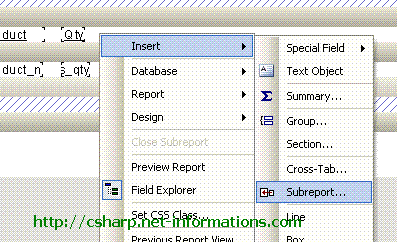
After create the main report , right click on Crystal Reports designer window and select Insert-Subreport.

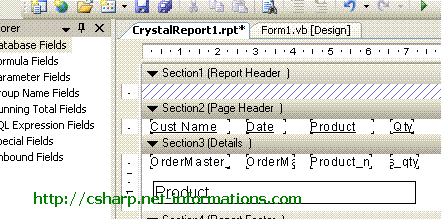
Then you will get the subreport object , drag the object in the designer window at the down part of the details tab , just below the fields in the details tab. When you release the mouse you will get a dialogue box asking report name . Enter a report name , and click the Report Wizard Button .

The wizard shows the table selection screen and select the table . Here in this case we have to select the Product Table from the list and click next .

Next screen is showing the table , from there select the fields you want to show the data and click finish. The you will get the sub report main screen again and select Link tab .

The link tab is making relation with your main Report and subreport . Here we are linking the productname from main report to the subreport. For that select Product.Product_name from Available fields.

Accept the other settings as it is in the screen and click ok. Now you can see the sub report object in the screen , if you want to re-arrange subreport design , double click on subreport object then you can design subreport.

Now the designing part is over and the next step is to call the Crystal Reports in C# and view it in Crystal Reports Viewer control .

Select the default form (Form1.cs) you created in C# and drag a button and a CrystalReportViewer control to your form .

You have to include CrystalDecisions.CrystalReports.Engine in your C# Source Code.

using CrystalDecisions.CrystalReports.Engine;

using CrystalDecisions.Shared;

Copy and paste the following source code and run your C# project


using System;  using System.Windows.Forms;  using CrystalDecisions.CrystalReports.Engine;  using CrystalDecisions.Shared;    namespace WindowsApplication1  {      public partial class Form1 : Form      {          public Form1()          {              InitializeComponent();          }            private void button1_Click(object sender, EventArgs e)          {              ReportDocument cryRpt = new ReportDocument();              cryRpt.Load(PUT CRYSTAL REPORT PATH HERE\\CrystalReport1.rpt");              crystalReportViewer1.ReportSource = cryRpt;              crystalReportViewer1.Refresh();          }      }  }

C# Crystal Reports Formula Field

http://csharp.net-informations.com/crystal-reports/csharp-crystal-reports-formula-field.htm

C# Crystal Reports Formula Field

SiteMap
CSharp.Net-Informations.com

The following C# - Crystal Reports section describes how to add a formula field in the Crystal Reports .

All C# Crystal Reports Tutorial in this website is based on the following database - crystaldb. So before you begin this section , please take a look at the database structure of crystaldb - Click Here C# crystaldb

If you are new to Crystal Reports and do not know how to create Crystal Reports from C# , please take a look at the section step by step tutorial for creating a Crystal Reports from C#.

The situations when formula field is using :

If you have a Crystal Reports with Qty and Price fields and you need an additional field in your Crystal Reports for Total, that is TOTAL = QTY X PRICE . In these types of situations you can use the Formula Field in Crystal Reports.

In this C# Crystal Reports tutorial we are showing that all orders with qty and price and the total of each row , that means each in each row we are showing the total of qty and price.

Before starting this tutorial Create a new Crystal Reports with fields CustomerName , Order Date , Product Name and Product Price . If you do not know how to create this report , just look the previous tutorial C# Crystal Reports from multiple tables . In that report selecting only four fields , here we need one more field Product->Price and one formula field Total.

After you create the above Crystal Reports, your CR designer screen is look like the following picture :

Next step is to create a Formula Field for showing the result of Qty X Price .

Right Click the Formula Field in the Field Explorer and click New. Then you will get an Input Message Box , type Total in textbox and click Use Editor.

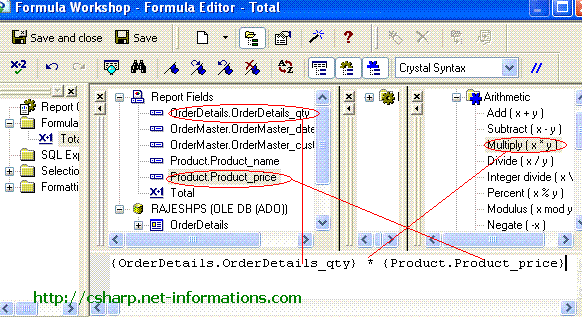
Now you can see the Formula Editor screen . Here you can enter which formula you want . Here we want the result of Qty X Price . For that we select OrderDetails.Qty , the multipy operator (*) and Product.Price . Double click each field for selection.

Now you can see Total Under the Formula Field . Drag the field in to the Crystal Reports where you want to display Total.

Now the designing part is over and the next step is to call the Crystal Reports in C# and view it in Crystal Reports Viewer control .

Select the default form (Form1.cs) you created in C# and drag a button and a CrystalReportViewer control to your form .

You have to include CrystalDecisions.CrystalReports.Engine in your C# Source Code.

using CrystalDecisions.CrystalReports.Engine;

using CrystalDecisions.Shared;

Copy and paste the following source code and run your C# project


using System;  using System.Windows.Forms;  using CrystalDecisions.CrystalReports.Engine;    namespace WindowsApplication1  {      public partial class Form1 : Form      {          public Form1()          {              InitializeComponent();          }            private void button1_Click(object sender, EventArgs e)          {              ReportDocument cryRpt = new ReportDocument();              cryRpt.Load(PUT CRYSTAL REPORT PATH HERE\\CrystalReport1.rpt");              crystalReportViewer1.ReportSource = cryRpt;              crystalReportViewer1.Refresh();          }      }  }
cryRpt.Load(PUT CRYSTAL REPORT PATH HERE\\CrystalReport1.rpt");
The Crystal Reports file path in your C# project files location, there you can see CrystalReport1.rpt . So give the full path name of Crystal Reports file like c:\projects\crystalreports\CrystalReport1.rpt

When you run this program you will get your screen like the following picture.

Dynamic Crystal Reports from C# Application

http://csharp.net-informations.com/crystal-reports/csharp-dynamic-crystal-reports.htm

Dynamic Crystal Reports from C# Application

SiteMap
CSharp.Net-Informations.com

Usually Crystal Reports generating with pre-defined columns . That is, the fields showing in Crystal Reports are selecting through a wizard at the time of Crystal Report design.

The following program describes how to generate a Crystal Report in C# with dynamic columns at the time of report generation . That is, we are not selecting any column from database table at the time of Crystal Report design. Instead of that we are passing an SQl query string and get the Crystal Report dynamically at runtime in C# . From the following picture you can understand how it works.

All C# Crystal Reports Tutorial in this website is based on the following database - crystaldb. So before you begin this section , please take a look at the database structure of crystaldb - Click Here C# crystaldb

If you are new to Crystal Reports and do not know how to create Crystal Reports from C# , please take a look at the section step by step tutorial for creating a Crystal Reports from C#.

Here we are going to create a Dynamic Crystal Report with the help of Strongly Typed Dataset. Create a new CSharp project and add a Strongly Typed Dataset in the C# Project . Before creating a Strongly Typed Dataset take a look at the detailed tutorial of how to create a C# Crystal Report from Strongly Typed Dataset of previous section .

Hope you understand how to create a C# Crystal Report from Strongly Typed Dataset. Create a new C# project and add a Strongly Typed Datset . Add five columns in the DataTable of Strongly Typed Dataset. Here we are limiting as five column , but you can add any number of column according to your reports requirements.

Next step is to create a Crystal Reports design from the Strongly Typed dataset. You have to add a Crystal Report in your project and select data source as Strongly Typed Dataset. If you don't know how to do this section , refer the previous section of How to create a C# Crystal Report from Strongly Typed Dataset.

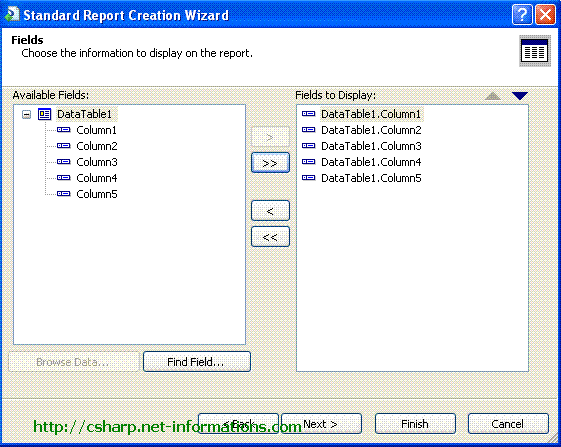
Select all the column (five) from Strongly Typed Dataset .

Click finish button . Then you can see the selected fields in the Crystal Repots . Arrange the fields according to your requirement . Now the designing part is over and the next step is to call the Crystal Reports in CSharp and view it in Crystal Reports Viewer control .

Select the default form (Form1.cs) you created in CSharp and drag a Textbox , button and CrystalReportViewer control to your form (like in the first picture ).

Here we are going to pass the SQl statements to Crystal Reports at runtime from C# program . For that we have to parse the SQL statement before we passing it to Crystal Reports. So we create a function for parsing SQL statements in the C# program.

Public Function procesSQL() As String

You have to include CrystalDecisions.CrystalReports.Engine in your C# Source Code.

using CrystalDecisions.CrystalReports.Engine;

using CrystalDecisions.Shared;

Copy and paste the following source code and run your C# project


using System;  using System.Windows.Forms;  using CrystalDecisions.CrystalReports.Engine;  using CrystalDecisions.Shared;  using System.Data;  using System.Data.SqlClient ;    namespace WindowsApplication1  {      public partial class Form1 : Form      {          CrystalReport1 objRpt = new CrystalReport1();             public Form1()          {              InitializeComponent();          }            private void button1_Click(object sender, EventArgs e)          {              SqlConnection cnn ;              string connectionString = null;              string sql = null;              connectionString = "data source=SERVER NAME;initial catalog=crystaldb;user id=USER NAME;password=PASSWORD;";              cnn = new SqlConnection(connectionString);              cnn.Open();              sql = procesSQL();              SqlDataAdapter dscmd = new SqlDataAdapter(sql, cnn);              DataSet1 ds = new DataSet1();              dscmd.Fill(ds, "Product");              objRpt.SetDataSource(ds.Tables[1]);              crystalReportViewer1.ReportSource = objRpt;              crystalReportViewer1.Refresh();          }            public string procesSQL()          {              string sql = null;              string inSql = null;              string firstPart = null;              string lastPart = null;              int selectStart = 0;              int fromStart = 0;              string[] fields = null;              string[] sep = { "," };              int i = 0;              TextObject MyText ;                inSql = textBox1.Text;              inSql = inSql.ToUpper();                selectStart = inSql.IndexOf("SELECT");              fromStart = inSql.IndexOf("FROM");              selectStart = selectStart + 6;              firstPart = inSql.Substring(selectStart, (fromStart - selectStart));              lastPart = inSql.Substring(fromStart, inSql.Length - fromStart);                fields = firstPart.Split(',');              firstPart = "";              for (i = 0; i <= fields.Length - 1; i++)              {                  if (i > 0)                  {                      firstPart = firstPart + ", " + fields[i].ToString() + " AS COLUMN" + (i + 1);                      firstPart.Trim();                        MyText = (TextObject) objRpt.ReportDefinition.ReportObjects[i+1];                      MyText.Text = fields[i].ToString();                  }                  else                  {                      firstPart = firstPart + fields[i].ToString() + " AS COLUMN" + (i + 1);                      firstPart.Trim();                        MyText = (TextObject)objRpt.ReportDefinition.ReportObjects[i+1];                      MyText.Text = fields[i].ToString();                  }              }              sql = "SELECT " + firstPart + " " + lastPart;              return sql;          }       }  }

connectionString = "data source=SERVER NAME;initial catalog=crystaldb;user id=USER NAME;password=PASSWORD;";
You have to provide the necessary database information to Connection String.

C# Crystal Reports from SQL Query

http://csharp.net-informations.com/crystal-reports/csharp-crystal-reports-sql-query.htm

C# Crystal Reports from SQL Query

SiteMap
CSharp.Net-Informations.com

The following section describes how to create a Crystal Reports in C# using SQL Query String .

All C# Crystal Reports Tutorial in this website is based on the following database - crystaldb. So before you begin this section , please take a look at the database structure of crystaldb - Click Here C# crystaldb

If you are new to Crystal Reports and do not know how to create Crystal Reports from C# , please take a look at the section step by step tutorial for creating a Crystal Reports from C#.

Generating a Strongly Typed DataSet

Here we are using a Strongly Typed Dataset for generating a Crystal Reports from SQL Query string . Before start this section , you can take look at the previous section of how to create a C# Crystal Report from Strongly Typed Dataset. Because here we are using Strongly Typed Dataset for generating Crystal Report from SQL Query string.

Here we are generating a report against the Product table . So we are passing the following sql and generating the report

sql = "SELECT Product_id,Product_name,Product_price FROM Product";

Create a new C# project and create a new Strongly Typed Dataset from Project - Add New Item Dialogue Box.

Add three column in the Strongly Typed Dataset .

  Product_id    Product_name  

Product_price

Create a new Crystal Report and select DataTable as Data Source . You can select DataTable from the wizard , Project Data - ADO.NET Dataset - Crystal report Dataset1 - dataset1. Click the Next Button.

Select fields ( Product_id , Product_name , Product_price ) from the next screen and click the finish button. Then you will get the designer screen with the selected fields. If you do not know how to create a dataset , refer the previous section How to create a C# Crystal Report from Strongly Typed Dataset.

Now the designing part is over. From the source code we can pass the SQL source code to Crystal Reports.

Select the default form (Form1.cs) you created in C# and drag a button and a CrystalReportViewer control to your form .

You have to include CrystalDecisions.CrystalReports.Engine in your C# Source Code.

using CrystalDecisions.CrystalReports.Engine;

using CrystalDecisions.Shared;

Copy and paste the following source code and run your C# project


using System;  using System.Windows.Forms;  using CrystalDecisions.CrystalReports.Engine;  using CrystalDecisions.Shared;  using System.Data;  using System.Data.SqlClient ;    namespace WindowsApplication1  {      public partial class Form1 : Form      {            public Form1()          {              InitializeComponent();          }            private void button1_Click(object sender, EventArgs e)          {              SqlConnection cnn ;              string connectionString = null;              string sql = null;                connectionString = "data source=SERVERNAME;initial catalog=DATABASENAME;user id=USERNAME;password=PASSWORD;";              cnn = new SqlConnection(connectionString);              cnn.Open();              sql = "SELECT Product_id,Product_name,Product_price FROM Product";              SqlDataAdapter dscmd = new SqlDataAdapter(sql, cnn);              DataSet1 ds = new DataSet1();              dscmd.Fill(ds, "Product");              MessageBox.Show (ds.Tables[1].Rows.Count.ToString());              cnn.Close();                CrystalReport1 objRpt = new CrystalReport1();              objRpt.SetDataSource(ds.Tables[1]);              crystalReportViewer1.ReportSource = objRpt;              crystalReportViewer1.Refresh();          }      }  }

connectionString = "data source=SERVERNAME;initial catalog=DATABASENAME;user id=USERNAME;password=PASSWORD;";
You have to provide the necessary database information to Connection String.
**

C# Crystal Reports Dynamic Logon parameters

http://csharp.net-informations.com/crystal-reports/csharp-crystal-reports-dynamic-login.htm

C# Crystal Reports Dynamic Logon parameters

SiteMap
CSharp.Net-Informations.com

The following section describes how to pass the logon information like Server Name , database Name , User Name and password dynamically to the Crystal Reports from C# applications.

When you run the previous programs in this C# tutorial , the Crystal Reports asks the Username and Password every time you run the Crystal Report. This section explains how to avoid the dialogue box asking username and password at runtime on Crystal Reports login . In this section we are passing User ID , Password , Server Name and Database Name dynamically to Crystal Reports from C# .

All C# Crystal Reports Tutorial in this website is based on the following database - crystaldb. So before you begin this section , please take a look at the database structure of crystaldb - Click Here C# crystaldb

If you are new to Crystal Reports and do not know how to create Crystal Reports from C# , please take a look at the section step by step tutorial for creating a Crystal Reports from C#.

In many situations dynamically passing the logon parameter fields are very useful , for example if you develop a database project in a test server environment and later you have to migrate it to other server , in these situations it is better to give these information dynamically to Crystal Reports .

In step by step tutorial for creating a Crystal Reports from C# - we created a report selecting all data from the Product table . There is no chance to change the server name or any other information on runtime in that case, because it is a static report and it will asks username and password every time you run the Crystal Reports . Here we are passing Server Name , UserID and Password dynamically to the Crystal Reports from our C# program

Here we use Crystal Reports ConnectionInfo class for passing connection information.

ConnectionInfo crConnectionInfo = new ConnectionInfo();

Select the default form (Form1.cs) you created in C# and drag a button and a CrystalReportViewer control to your form .

You have to include CrystalDecisions.CrystalReports.Engine in your C# Source Code.

using CrystalDecisions.CrystalReports.Engine;

using CrystalDecisions.Shared;

C# Crystal Reports without database

http://csharp.net-informations.com/crystal-reports/csharp-crystal-reports-without-database.htm

BCT: đã thực hiện theo cách này và đáp ứng tốt nhu cầu tạo báo cáo bằng Crystal Report
- Đã thử 3 cách để truyền dữ liệu vào trong báo cáo lúc runtime
    + Truyền thẳng vào DataSourceConnections của báo cáo, tạo query hoặc command trực tiếp trên báo cáo
    + Tạo một nguồn dữ liệu trả về IDataReader và dịch ra DLL, sau đó gán vào làm nguồn dữ liệu của báo cáo
    + Tạo một dataset để gán làm nguồn dữ liệu lúc thiết kế báo cáo, sau đó gán một dataset lúc runtime
- Cách tạo Dataset và gán làm nguồn dữ liệu để thiết kế báo cáo là cách dễ kiểm soát nhất
- Nếu tạo một DLL để làm nguồn dữ liệu thì khi dịch DLL này nhiều khi bị khó khăn vì không thể ghi đè lên tệp DLL có sẵn (đang được sử dụng bởi báo cáo lúc thiết kế). Ngoài ra cũng chưa thử thành công việc thay đổi nguồn dữ liệu (mặc dù debug vẫn thấy dữ liệu thay đổi, nhưng khi hiển thị thì báo cáo vẫn lấy dữ liệu hệt như lúc thiết kế - nghĩa là nguồn dữ liệu gán lúc runtime không có ý nghĩa gì)
- Cách tạo tham số cho command và gán kết nối vào báo cáo thì không tận dụng được các query và function trong cơ sở dữ liệu
- Các bước thực hiện:
    + Tạo nguồn dữ liệu Dataset cho báo cáo
    + Gán nguồn dữ liệu và thiết kế báo cáo trên Visual Studio như bình thường
    + Trong mã nguồn khi gọi báo cáo, tạo Dataset chứa dữ liệu và gán vào thuộc tính DataSource của báo cáo.

C# Crystal Reports without database

SiteMap
CSharp.Net-Informations.com

Usually we are using Crystal Reports to fetch data from databases and show it as a report. Here we are generating a Crystal Reports from C# without using a database . For generating a Crystal Reports without database , here we are using a Strongly Typed Dataset and a Data Table of C#.

If you are new to Crystal Reports and do not know how to create Crystal Reports from C# , please take a look at the section step by step tutorial for creating a Crystal Reports from C#.

Generating a Strongly Typed DataSet

Create a new C# Project and create a Dataset from Project - Add New Item Dialogue Box.

Select Dataset from list

Accept the default name DataSet1.xsd .

Create a data table for DataSet1.xsd in C#.

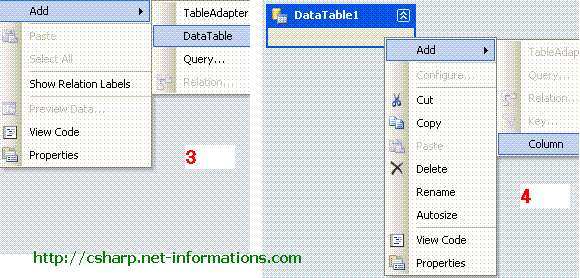
Select DataSet1.xsd from Solution Explorer and right click . Select datatable from the menu. Then you will get a datatable in the Datast . Right click the datatable and select Add-Column .

Here we are making a two column Crystal Reports , so we need two column in the data table . Add and ID column and Item column in the Data Table.

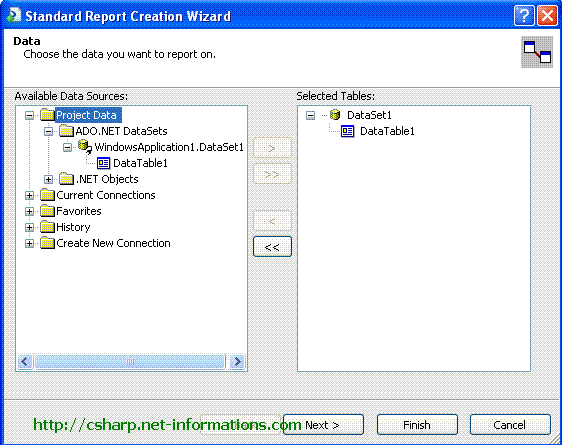
Now the dataset part is over . Next step is to create a Crystal Reports from the Dataset we created. Select a new Crystal Reports from Add New Item menu and accept the default settings. The next screen is to select appropriate data source . There you can find the Datatable1 from Project data - ADO.NET Datasets , and select Datatable1 to the right side.

Click Next button and select ID and Item from the datatable1 to right side and click finish.

Now the C# Crystal Reports designer part is over . Next part is to create data for the Crystal Reports . For that we have to create a Data Table through programmatically and add data to dataset1.

Select the default form (Form1.cs) you created in C# and drag a button and a CrystalReportViewer control to your form .

Copy and paste the following source code and run your C# project


using System;  using System.Windows.Forms;  using CrystalDecisions.CrystalReports.Engine;  using CrystalDecisions.Shared;  using System.Data;    namespace WindowsApplication1  {      public partial class Form1 : Form      {            public Form1()          {              InitializeComponent();          }            private void button1_Click(object sender, EventArgs e)          {              DataSet1 ds = new DataSet1();              DataTable t = ds.Tables.Add("Items");              t.Columns.Add("id", Type.GetType("System.Int32"));              t.Columns.Add("Item", Type.GetType("System.String"));                DataRow r ;              int i = 0;              for (i = 0; i <= 9; i++)              {                  r = t.NewRow();                  r["id"] = i;                  r["Item"] = "Item" + i;                  t.Rows.Add(r);              }                CrystalReport1 objRpt = new CrystalReport1();              objRpt.SetDataSource(ds.Tables[1]);              crystalReportViewer1.ReportSource = objRpt;              crystalReportViewer1.Refresh();           }      }  }
(Chơi cho vui) AIRDROP CHAINGE FINANCE - dự án xây dựng ứng dụng ngân hàng số cho mọi người

 Không hiểu lắm về cái này, tuy nhiên thấy quảng cáo khá nhiều, lại chỉ cung cấp vài thông tin cá nhân (mà mấy ông lớn như facebook với goog...